
Colour & information
Customise your Revit interface.
Adjust ribbon and Project Browser colours, choose the plugin language and find your recent commands.
Interface customisation
Colours
Customise the Revit ribbons, the BIMaestro ribbon and the Project Browser. Here is a real example in Revit.
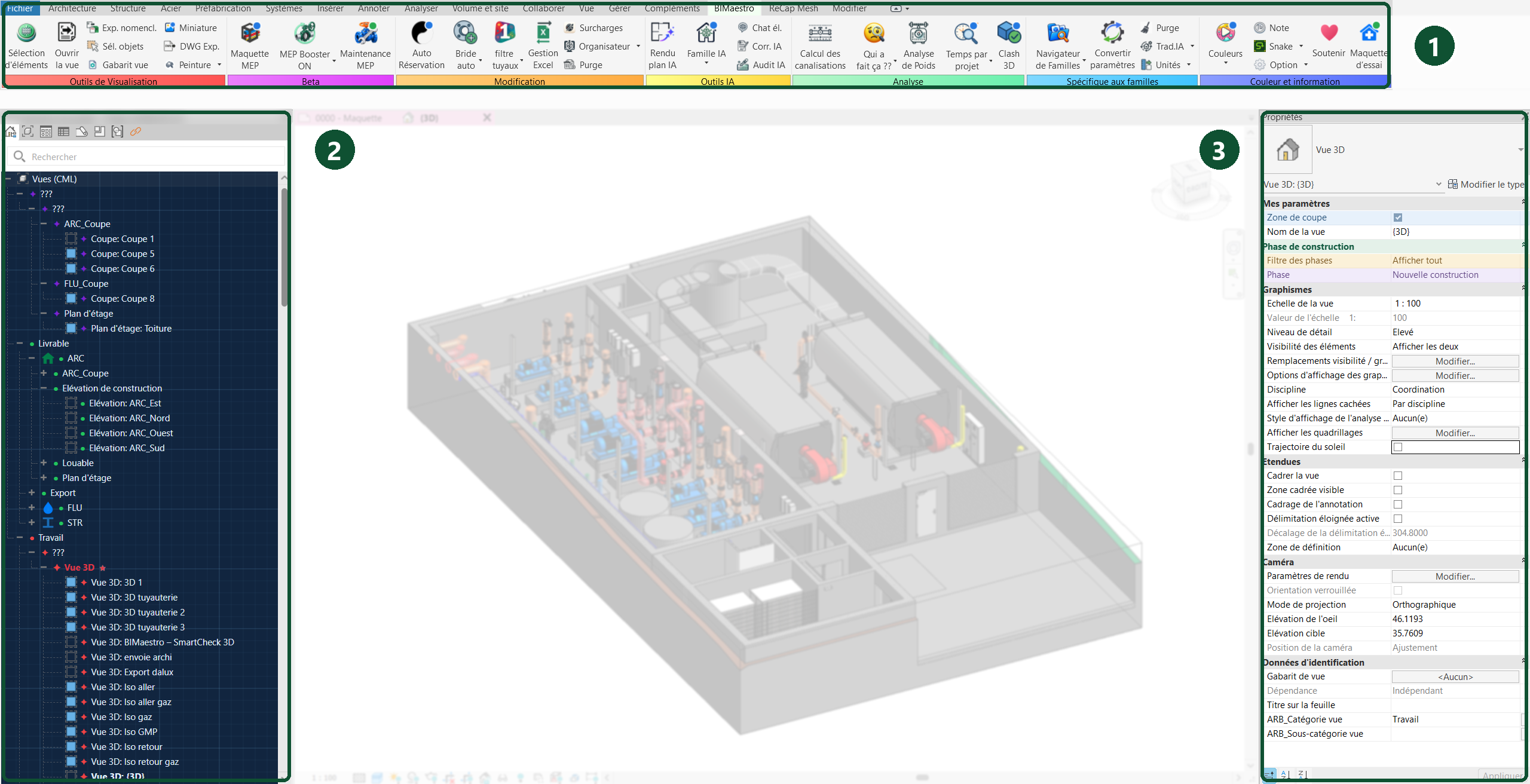
The BIMaestro ribbonColoured tool groups you can find at a glance.
The Project BrowserDark background and coloured markers in front of the views.
The Properties paletteYour own groups, with coloured text and background.
Where do I click in Revit?
Open the tab BIMaestro, then find Colours in the group Colour and information, on the right of the ribbon.
- One click opens the customisation window.
- A double-click turns colours on or off.
Watch the demo
More tools in this category
Other available tools.
Click a tool to explore how it works, its use cases and its demo video.
Get started
Ready to try a tool in Revit?
Find these tools in Revit after installing BIMaestro.